
How to Download or Save a DocSend Document as a PDF
Whether you can turn a DocSend document into a PDF depends on the sender's settings. Here are the honest, practical methods: the download button, browser.

On this page
- How to download or save a DocSend document as a PDF
- 1. Try the download button first
- 2. Use your browser's Print to PDF
- 3. Request a copy from the sender
- Decision flow: which DocSend-to-PDF method applies to you
- Copy-paste checklist before you save anything
- Scenario table: how to get a DocSend document as a PDF
- Why senders disable downloads
- Where this method falls short
- How Plox handles downloads and exports
- A quick note on confidentiality
- Frequently asked questions
- Can I always download a DocSend document as a PDF?
- How do I save a DocSend document if there is no download button?
- Why is the download option missing on some DocSend links?
- Is it okay to print a DocSend document to PDF?
- Can I download a document someone shared with me on Plox?
- Does converting DocSend to PDF remove the watermark or tracking?
Whether you can turn a DocSend link into a PDF depends entirely on one setting: did the sender allow downloads. If they did, click the download button in the DocSend viewer to save the original file, which is usually already a PDF. If downloads are off but printing is allowed, use your browser's Print to PDF. If both are blocked, the owner turned off saving on purpose, so the honest move is to ask the sender for a copy.
How to download or save a DocSend document as a PDF
DocSend shares documents as viewer links, and what you can do with a link depends on the settings the sender chose when they created it. Some documents are fully downloadable. Some are view-only. Some allow printing but block direct downloads.
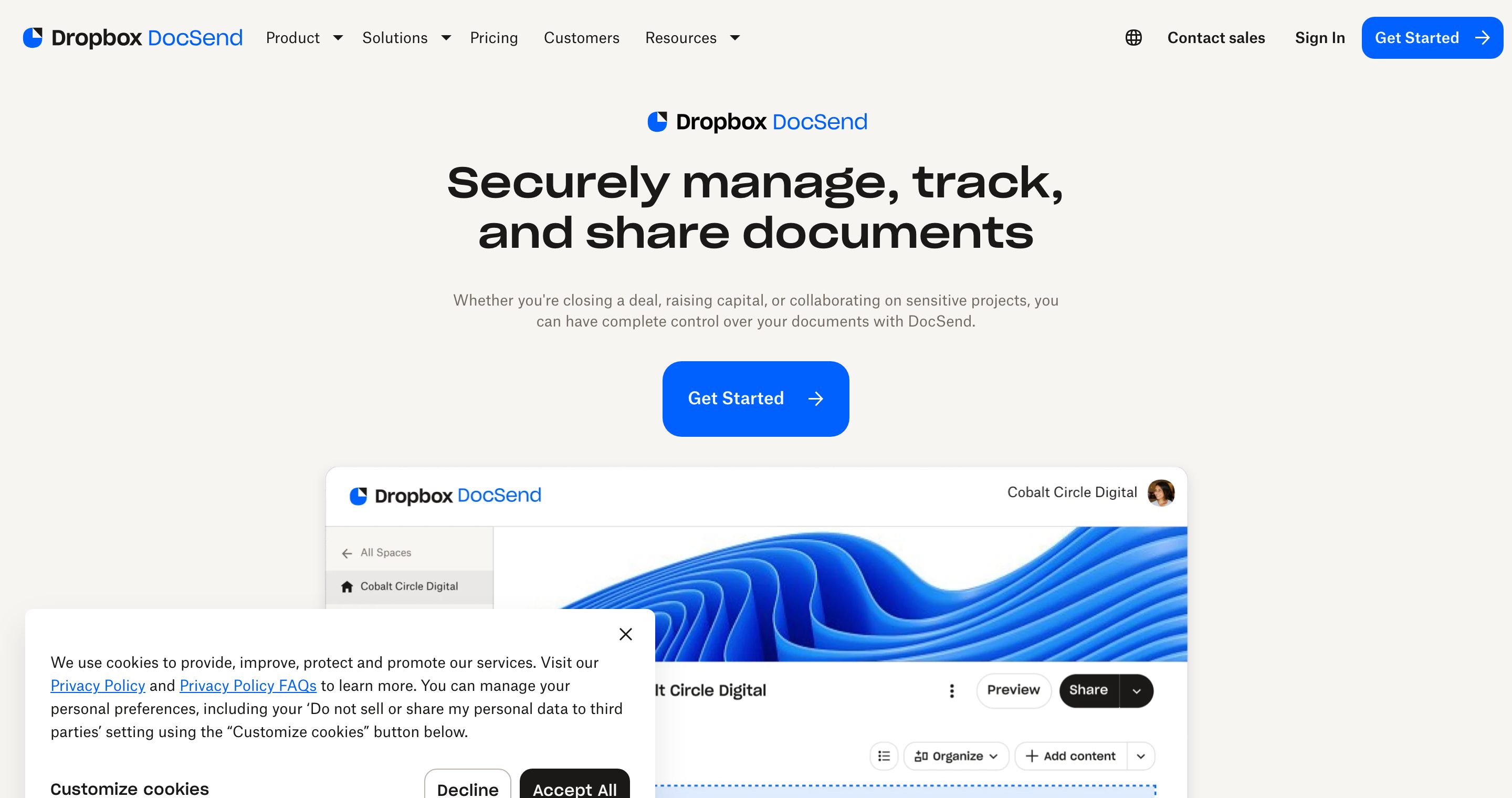
Below are the legitimate, practical methods for getting a PDF, in the order you should try them. These cover what is available to you as a viewer, not how to get around protections. Always respect the sender's settings, because a view-only DocSend link is usually a confidential document by intent.
1. Try the download button first
Open the DocSend link in your browser and look for a download control, usually near the top or bottom edge of the viewer.
- Open the document link.
- Look for a download button or a downward-arrow icon.
- Click it to save the original file, which is often already a PDF.
- If you do not see the button, the sender disabled downloads.
When the download button is present, this is the cleanest method. You get the original file with its full quality and layout intact, rather than a re-rendered version. There is nothing to bypass here: the sender deliberately allowed it.
2. Use your browser's Print to PDF
If there is no download button but the document allows printing, you can usually save it through your browser's print engine. This works because printing renders each page to a virtual PDF printer.
- With the document open in your browser, press Ctrl+P on Windows or Cmd+P on Mac.
- In the print dialog, change the destination or printer to "Save as PDF" (Chrome, Edge, Safari) or "Microsoft Print to PDF" (Windows).
- Set the layout and the page range you need.
- Click Save and choose where to store the file.
A few honest caveats. Some documents disable printing as well, in which case the print dialog will not produce a usable file. Some DocSend links apply a dynamic watermark to each page, and that watermark will appear in your printed PDF too. That is by design. Printing a permitted document to PDF is fine; stripping a watermark the sender added is not, and we do not cover it.
3. Request a copy from the sender
If both download and print are disabled, the owner turned off saving on purpose, often to keep a confidential document inside a controlled, trackable link. The right move is simply to ask.
- Reply to the email or message that contained the link.
- Say why you need an offline copy, for example to review with a colleague, to mark up, or to keep for your records.
- Let the sender decide whether to enable downloads or send you a file directly.
This keeps the request transparent and respects the control the sender set up. In most cases a sender will happily send a copy once they know who is asking and why. If they decline, that decision is theirs to make.
Decision flow: which DocSend-to-PDF method applies to you
Use this quick decision flow to land on the right method in seconds. Read top to bottom and stop at the first match.
START: Open the DocSend link in your browser
  |
  v
Is there a download / download-arrow button?
  |-- YES -> Click it. Save the original file (usually a PDF). DONE.
  |-- NO  -> continue
            |
            v
        Press Cmd+P / Ctrl+P. Does a print dialog appear with content?
          |-- YES -> Choose "Save as PDF" as the destination. Save. DONE.
          |          (Note: any watermark stays on the page. That is intended.)
          |-- NO  -> Download AND print are both disabled.
                     The owner blocked saving on purpose.
                     -> Reply to the sender and request a copy. DONE.
Copy-paste checklist before you save anything
Run this five-line checklist first. It keeps you accurate and on the right side of any confidentiality terms:
- I confirmed whether the sender enabled downloads (button present = yes).
- If no button, I tried Print to PDF rather than assuming it is impossible.
- If both are off, I am asking the sender instead of trying to bypass the link.
- I have permission to keep an offline copy of this document.
- I will not remove a watermark or defeat tracking the sender applied.
Scenario table: how to get a DocSend document as a PDF
| Scenario | What you can do | Is it legitimate? |
|---|---|---|
| Download enabled | Use the download button to save the original file, usually a PDF. | Yes, the sender allowed it. |
| Download off, printing allowed | Use your browser's Print to PDF from the print dialog. | Yes, watermark may remain. |
| Print and download both off | Request a copy from the sender; saving was disabled on purpose. | Yes, asking is the correct path. |
| You are the sender / owner | Export or download your own document anytime from your account. | Yes, you own the file. |
| Trying to strip a watermark or beat tracking | Not covered here. | No, respect the sender's intent and any NDA. |
Why senders disable downloads
Understanding why a sender turned off downloads helps you decide when to simply ask. The reasons are usually sound.
- Confidentiality. A pitch deck, financial model, or legal document may hold sensitive information the sender wants to keep inside a controlled link rather than scattered across inboxes and hard drives.
- Tracking. View-only links let the sender see who opened the document and for how long. That visibility gets harder once a file is downloaded and forwarded.
- Version control. A single live link means every viewer sees the latest version, not an outdated saved copy that contradicts the current numbers.
None of these are obstacles to engineer around. They are signals that the sender wants a conversation about access. For a fuller picture of why this matters for sensitive documents, see how the U.S. Federal Trade Commission frames protecting personal and business information. A quick message is the correct and fastest path.
Where this method falls short
Honest limitation: none of these methods give you an editable file. Print to PDF and the download button both produce a flat, page-rendered document. If you need to change the numbers in a financial model or edit a deck, a PDF will not help. In that case there is no shortcut at all: you have to ask the sender for the source file, such as the original spreadsheet or slide deck. A PDF is a snapshot, not the working document.
How Plox handles downloads and exports
Plox is a secure document sharing and virtual data room platform built for founders and dealmakers. It gives senders the same kind of control DocSend offers, and to be fair, DocSend pioneered much of this category and its page-by-page link analytics remain a genuine strength. Plox approaches the same problem with a modern, founder-native design, a real free plan, and an AI data room layer.
As the document owner on Plox, you control exactly what a viewer can do:
- Share documents as secure, trackable links where the link never changes but the file can be updated anytime.
- Allow or deny download per link, so viewers can either save a local copy or only view it inside the link.
- Apply a dynamic watermark, stamped per viewer on every page, to discourage uncontrolled redistribution.
- See page-by-page analytics: who opened it, time per page, completion percentage, and real-time view notifications.
- Export or download your own files anytime, since you own them.
For viewers, the same honest rule applies on Plox as on DocSend. If the owner allowed downloading, you can save the file. If not, ask the owner for a copy. The etiquette does not change with the tool.
If you are comparing the two, see Plox vs DocSend for a feature-by-feature look. To understand the sender side of these permissions, read about document control. For more background on the platform itself, see our guide on what DocSend is and how it works, the step-by-step on how to turn a PDF into a trackable link, and our honest take on whether DocSend is safe.
A quick note on confidentiality
A document shared as a view-only link is usually confidential by intent. Before you save, print, or forward anything, consider whether you actually have permission to keep a copy, and ask the sender when in doubt. Respecting the owner's settings protects the working relationship and keeps you on the right side of any non-disclosure terms you may have signed.
If you are the one sharing sensitive material and want this level of control on your own links, try Plox free. You can send a secure, trackable link in minutes, decide per link whether downloads are allowed, and watermark every page, with no credit card and no time limit on the free plan.
Frequently asked questions
Can I always download a DocSend document as a PDF?
No. Whether you can download depends on the settings the sender chose. If downloads are enabled, use the download button. If they are disabled, you may still be able to print to PDF, and if printing is off too, you should request a copy from the sender.
How do I save a DocSend document if there is no download button?
Try your browser's Print to PDF feature by pressing Ctrl+P or Cmd+P and selecting "Save as PDF" as the destination. If the document also disables printing, the sender has turned off saving on purpose, so ask them for a copy instead.
Why is the download option missing on some DocSend links?
Senders disable downloads to protect confidential information, to keep tracking accurate, and to maintain version control. A missing download button is a deliberate choice, not an error, and the right response is to request access from the sender.
Is it okay to print a DocSend document to PDF?
If the sender allowed printing, using Print to PDF is a legitimate way to keep a copy. Always respect any confidentiality terms and the sender's intent. Any watermark the sender applied will remain on the page, which is by design. If printing is disabled, do not try to bypass the protection.
Can I download a document someone shared with me on Plox?
It depends on the owner's settings, just like DocSend. If the owner enabled downloads, you can save the file. If not, ask the owner for a copy. As the owner of your own documents, you can export or download them anytime.
Does converting DocSend to PDF remove the watermark or tracking?
No, and this guide does not cover removing watermarks or defeating tracking. Those protections reflect the sender's wishes and often relate to a confidentiality agreement. If you need an unmarked copy, ask the sender directly.
Written by the Plox team
Plox builds secure document sharing and virtual data room software for founders and dealmakers. We share pricing and comparisons transparently, and recheck competitor details regularly.